Setup guides: Mobile proxies · Static residential (ISP) · Residential by the GB
A static residential IP behaves like a home connection and never rotates: the same address stays yours for as long as you keep renewing. That makes it the right tool when a session, a login or a reputation has to persist. This guide walks through everything you can do with one from the client area, without opening a ticket.
What a static residential IP is good for
The address belongs to a real consumer internet provider, the kind a household gets, and it is dedicated to you: nobody else shares it, and it does not rotate. To a website you look like the same person coming back from the same home connection, day after day. That combination is what makes it useful for:
- Accounts you keep long term. Social, marketplace or ad accounts tolerate a home IP that never changes far better than a datacenter range that a thousand people passed through last week.
- Long sessions and checkout flows. A login, a cart, a multi-step form or a ticket queue survives from start to finish, because the address does not shift under you halfway through.
- Building reputation over time. Anti-fraud systems score consistency. The same residential IP, used steadily from the same place, ages into a trusted one instead of resetting every session.
- Region-accurate research. Prices, search results, ads and catalogues differ by neighbourhood, not just by country. A fixed address in a specific US city shows you what a resident there actually sees.
- Whitelisting and allowlists. When a partner, API or internal tool has to allow your IP, that only works if the IP stops still.
When a rotating pool is the better tool: large scale crawling where every request should look independent, or one-off checks across many countries. That is what our Residential by the GB plans are for.
Where your proxies live
Sign in and open Proxies in the left menu, then Static Residential Proxies (ISP).
You will see every ISP plan on your account. Click the one you want to work with.
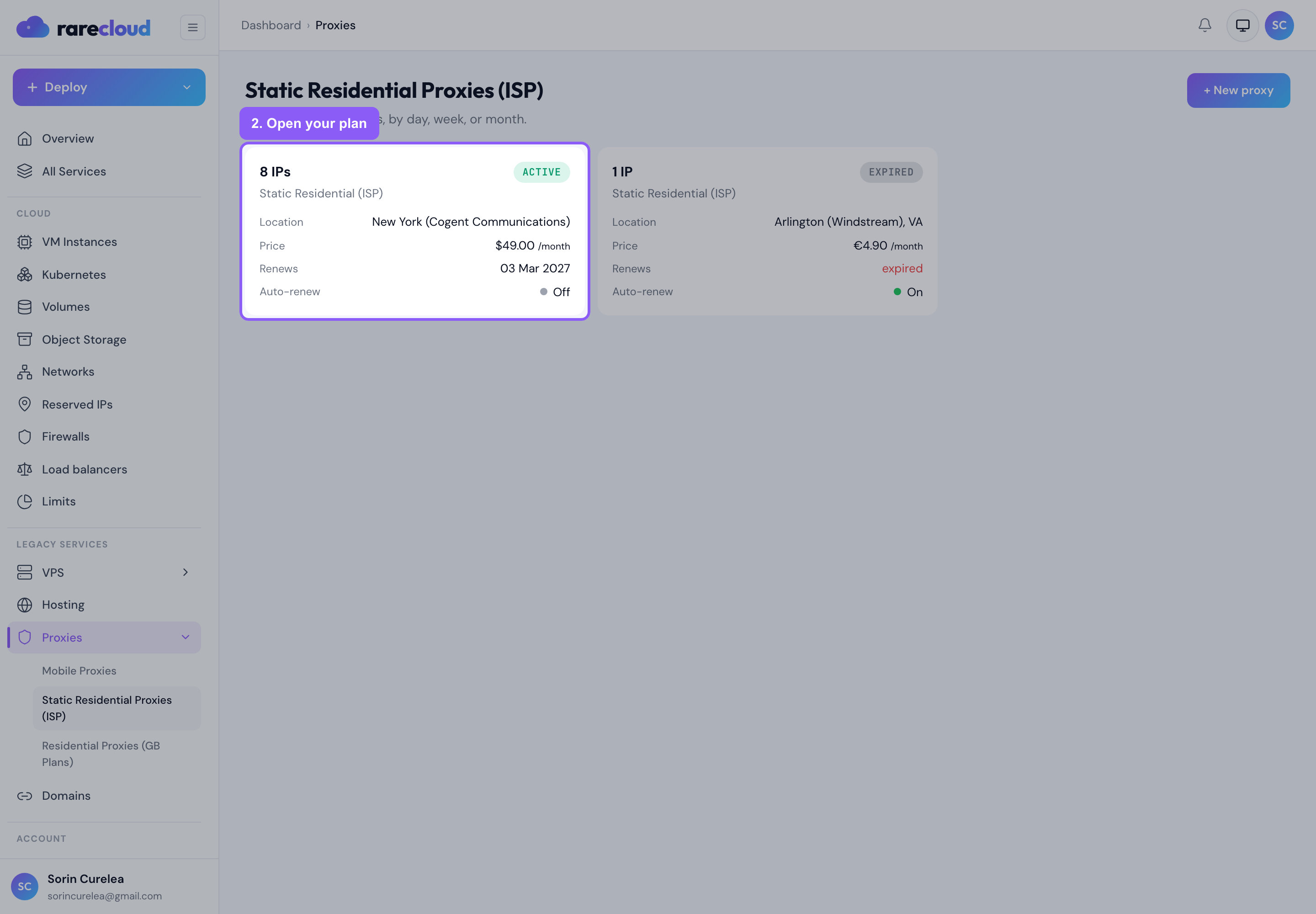
Your IP list, column by column
The service page opens on IP list, which is the sheet you will use most.
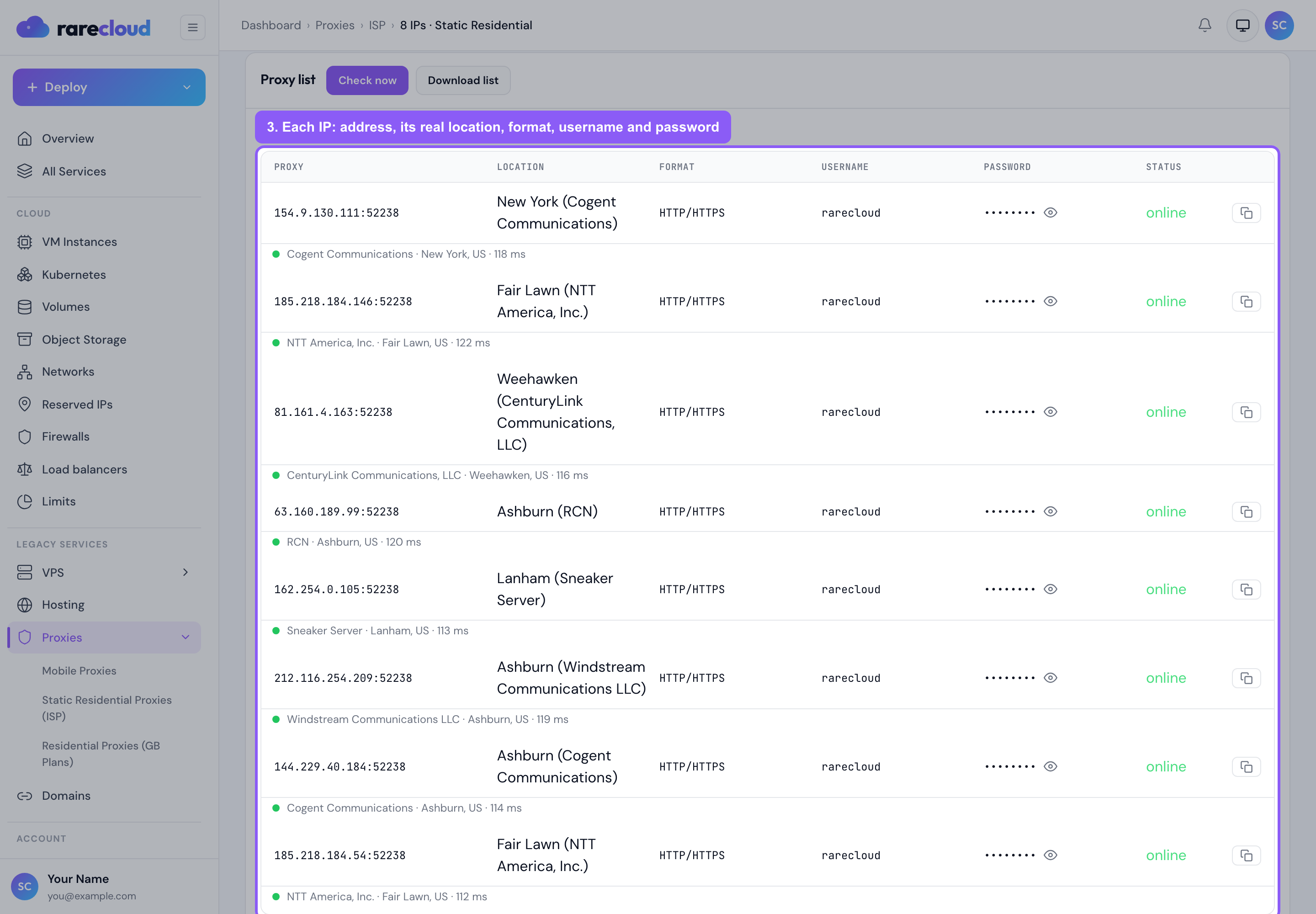
Each row is one dedicated IP:
- Proxy: the address and port you connect to, in
ip:portform. - Location: where that specific IP actually sits, shown as City (Network). A custom pack can span several cities and carriers, so this is per IP, not per plan. The real location appears once you run a check (see below).
- Format: the protocol this plan currently serves, HTTP/HTTPS or SOCKS5.
- Username and Password: your credentials. Click the eye to reveal the password, and the copy button at the end of the row to grab the whole line.
The header line reminds you of the download format: ip:port:username:password.
Check that everything works, live
Check now routes a small request through every IP in the list and reports what actually happened: whether it is up, the exit IP it produced, the city and network it lands in, and the latency.
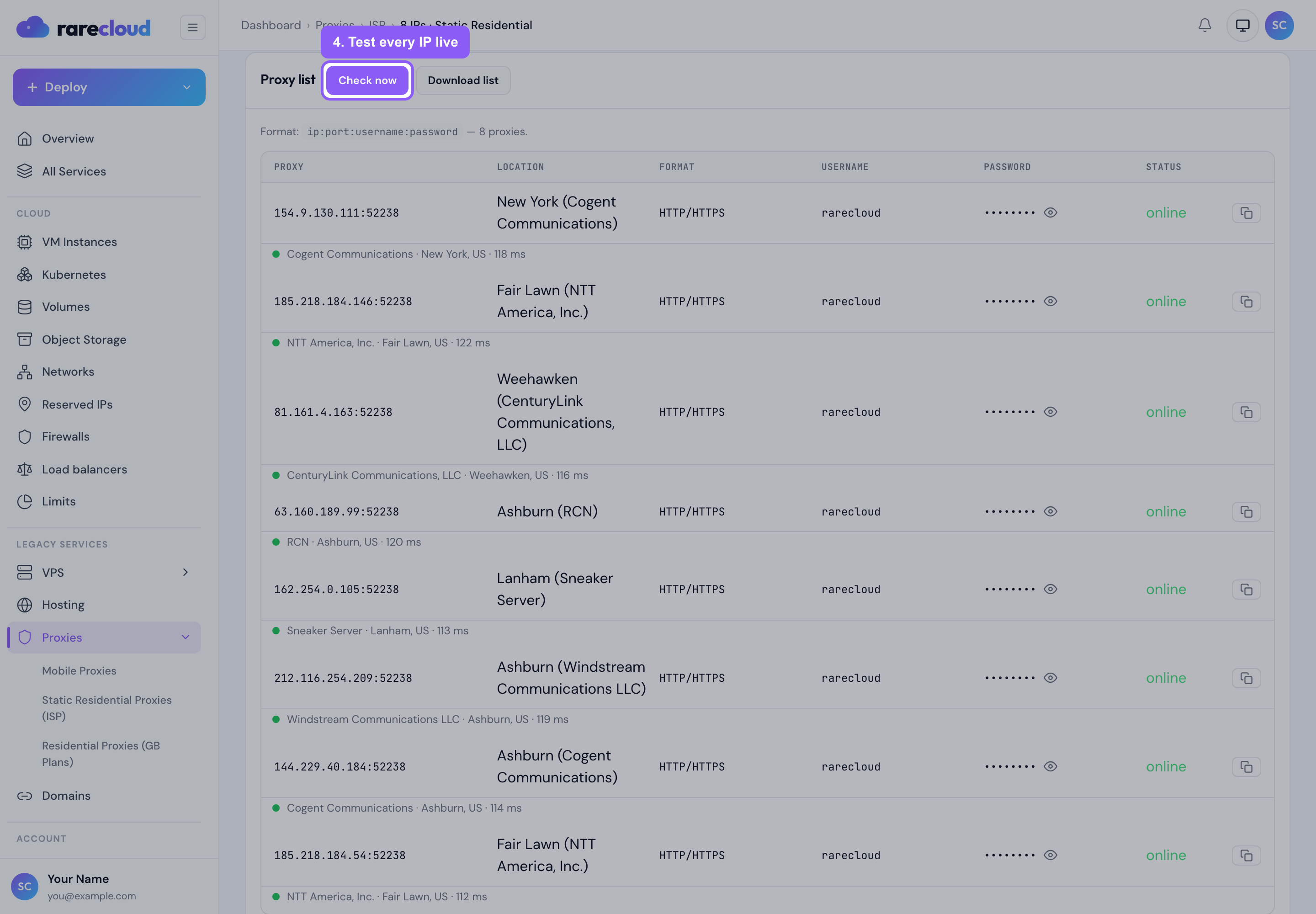
This is the fastest way to answer "is it me or is it the proxy". If a check comes back clean and your tool still fails, the problem is on the tool's side, usually the protocol setting.
Download the whole list
Download list gives you every proxy as a plain text file in
ip:port:username:password form, ready to paste into a proxy manager, an
antidetect browser or a script.
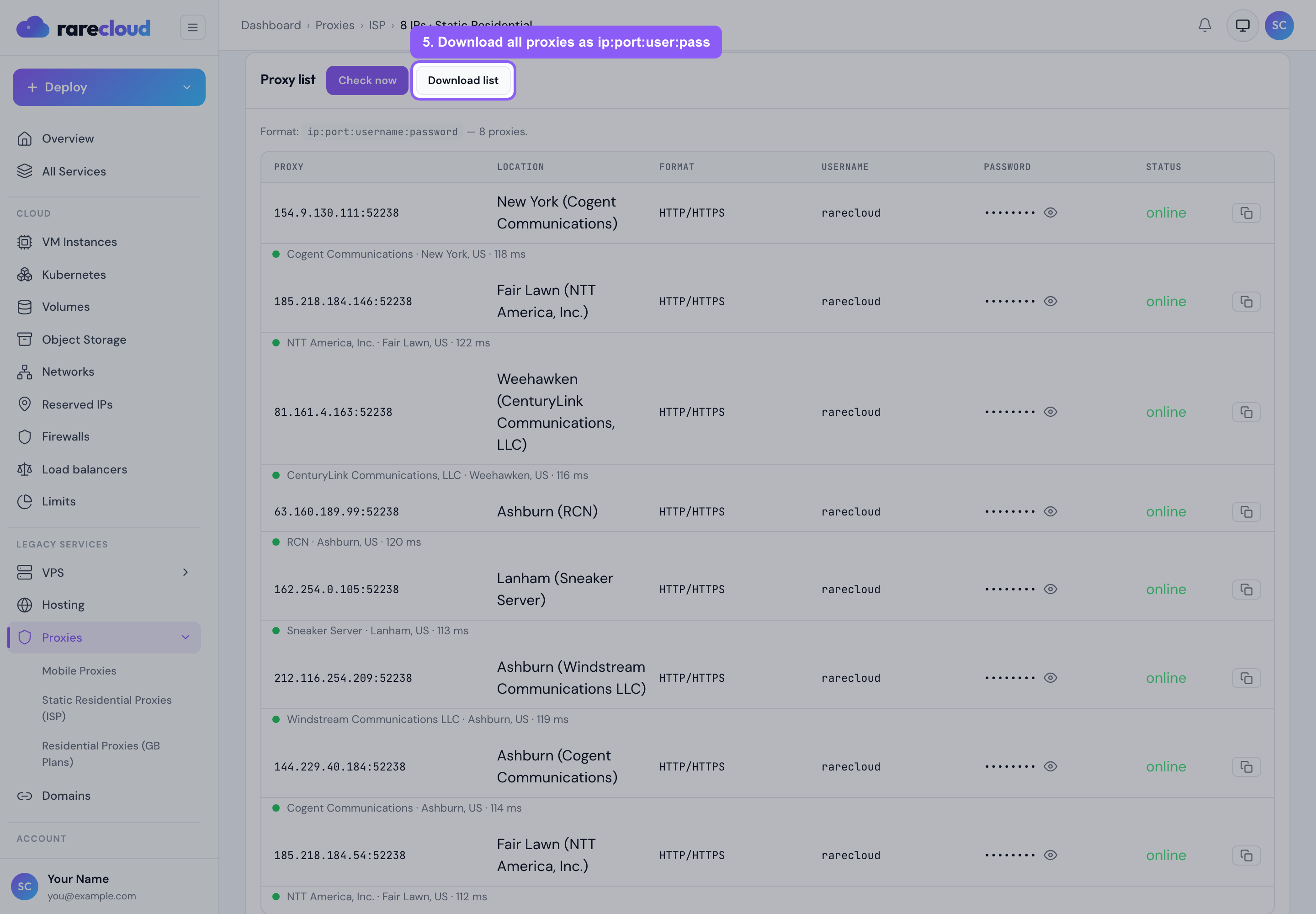
HTTP/HTTPS or SOCKS5, your choice
Static residential plans support both protocols, and you can switch whenever you like. Scroll to Proxy format, pick the one your software expects, and the change applies to every IP on the plan within a minute.
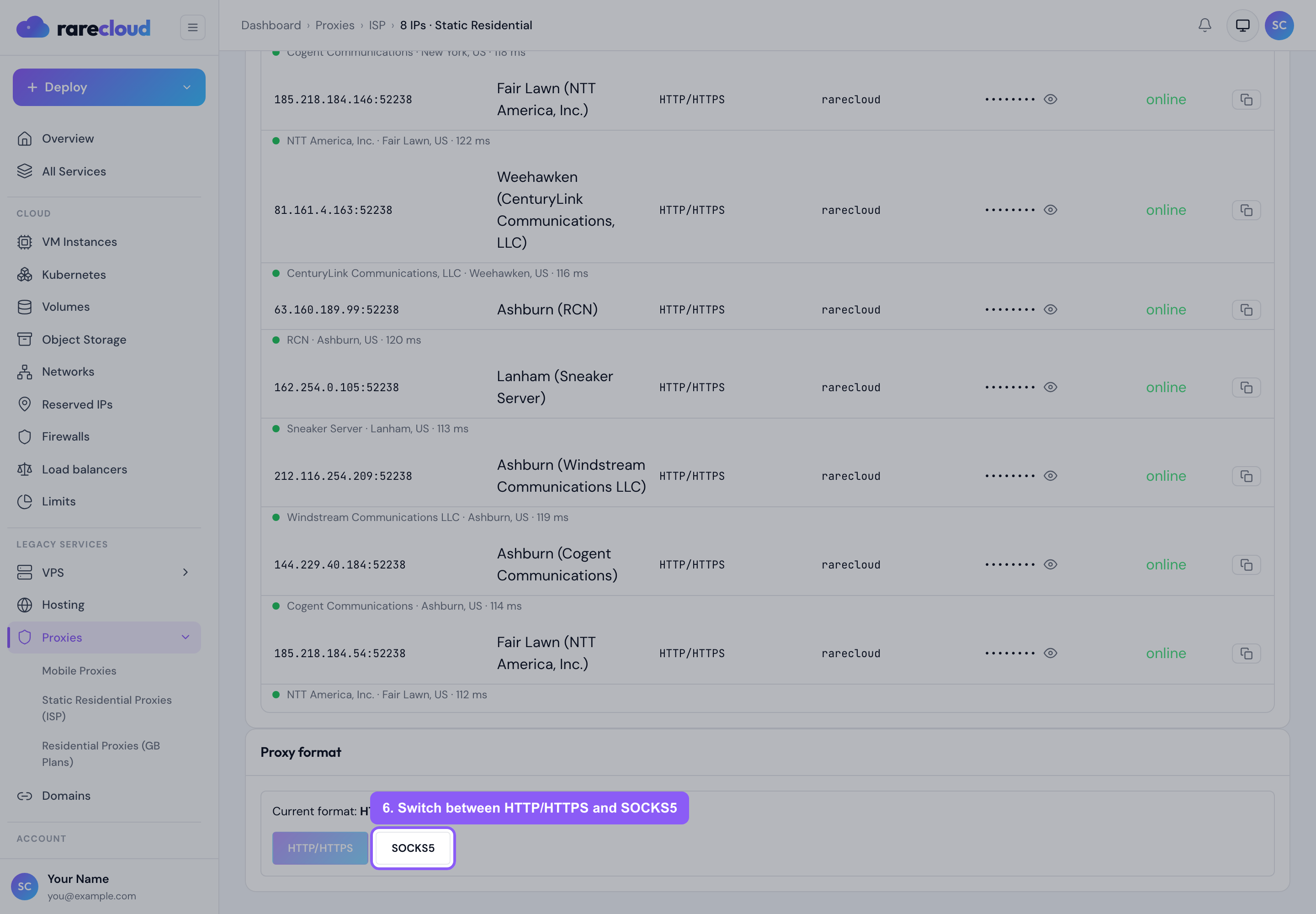
Rule of thumb: pick HTTP/HTTPS for browsers and most scraping tools, and
SOCKS5 when your tool needs raw TCP or asks for SOCKS specifically. If a tool
offers socks5h, prefer it: DNS then resolves on the proxy side, so your lookups
match your exit location.
Authentication: password or IP whitelist
The Authentication tab decides how your proxies recognise you.
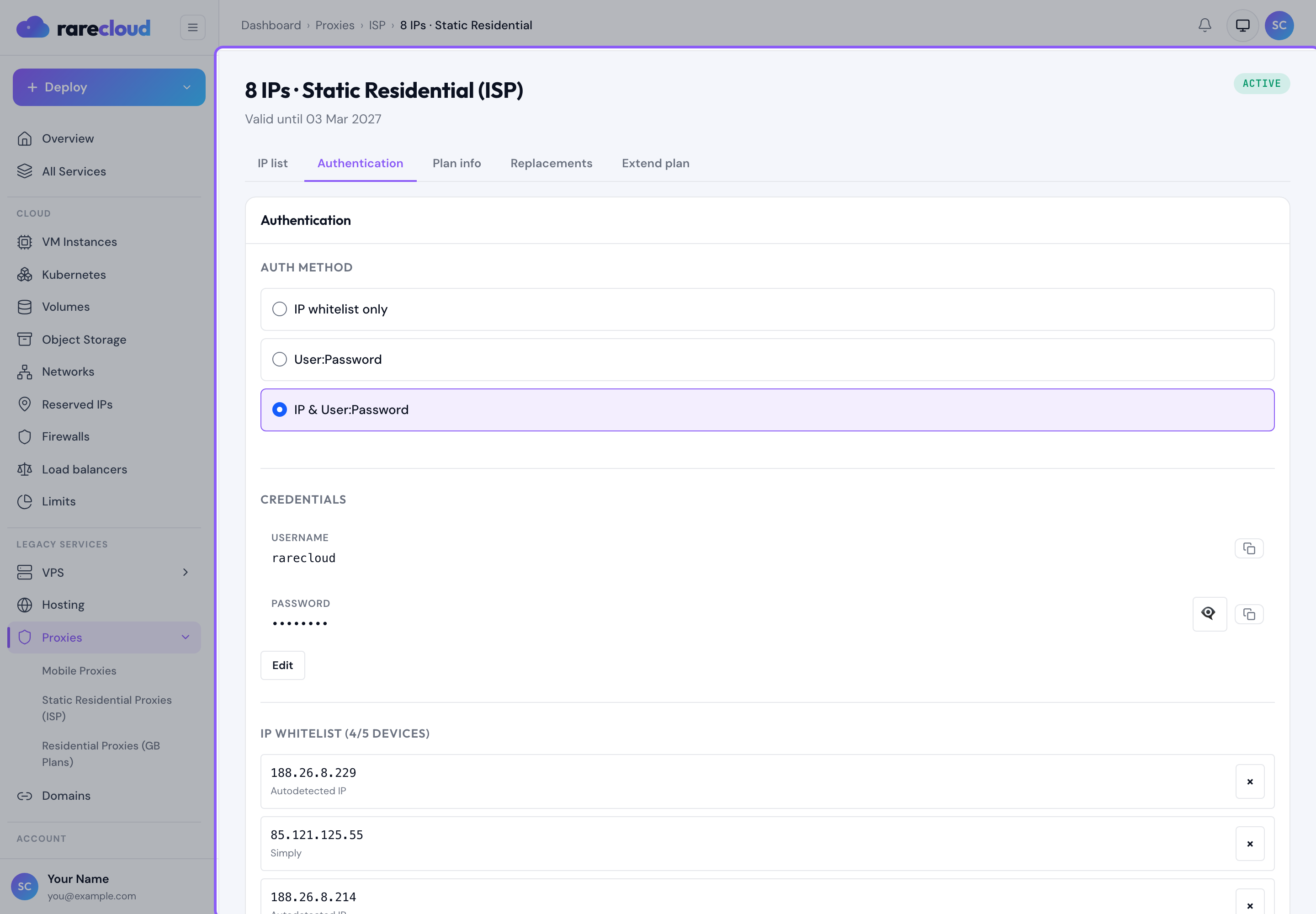
- Username and password: works from anywhere, and you can set your own credentials or regenerate them at any time.
- IP whitelist: add the public IP of your server or office and connect with no credentials at all. Ideal for tools that dislike proxy authentication.
You can keep both active: whitelisted addresses connect directly, everyone else still needs the password.
Plan details
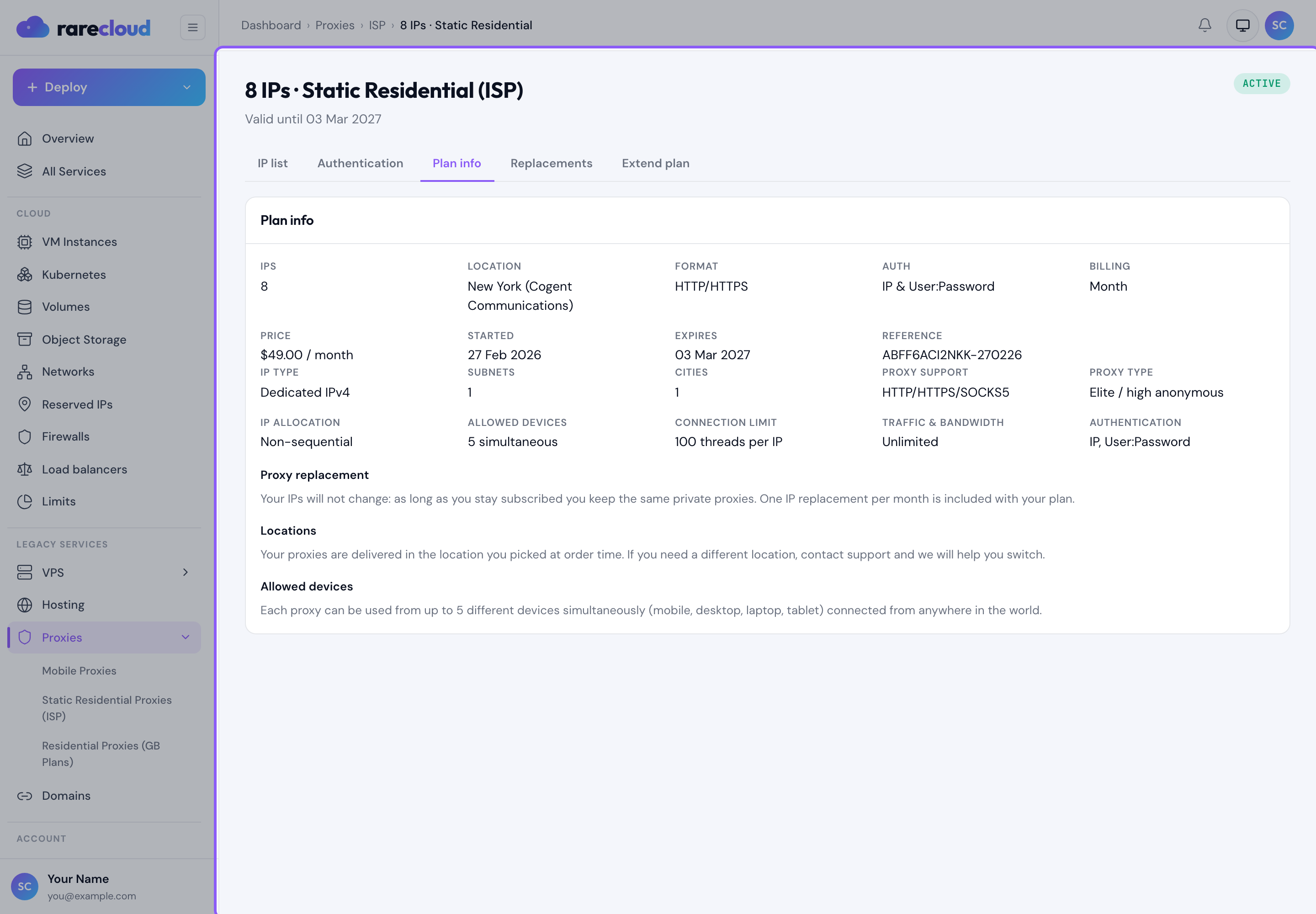
Plan info shows what you are paying for and until when: the number of IPs, the billing cycle, the renewal price and the expiry date.
Replacing an IP
Not happy with an address? Replacements swaps it for a new one, and you can choose the location of the replacement.
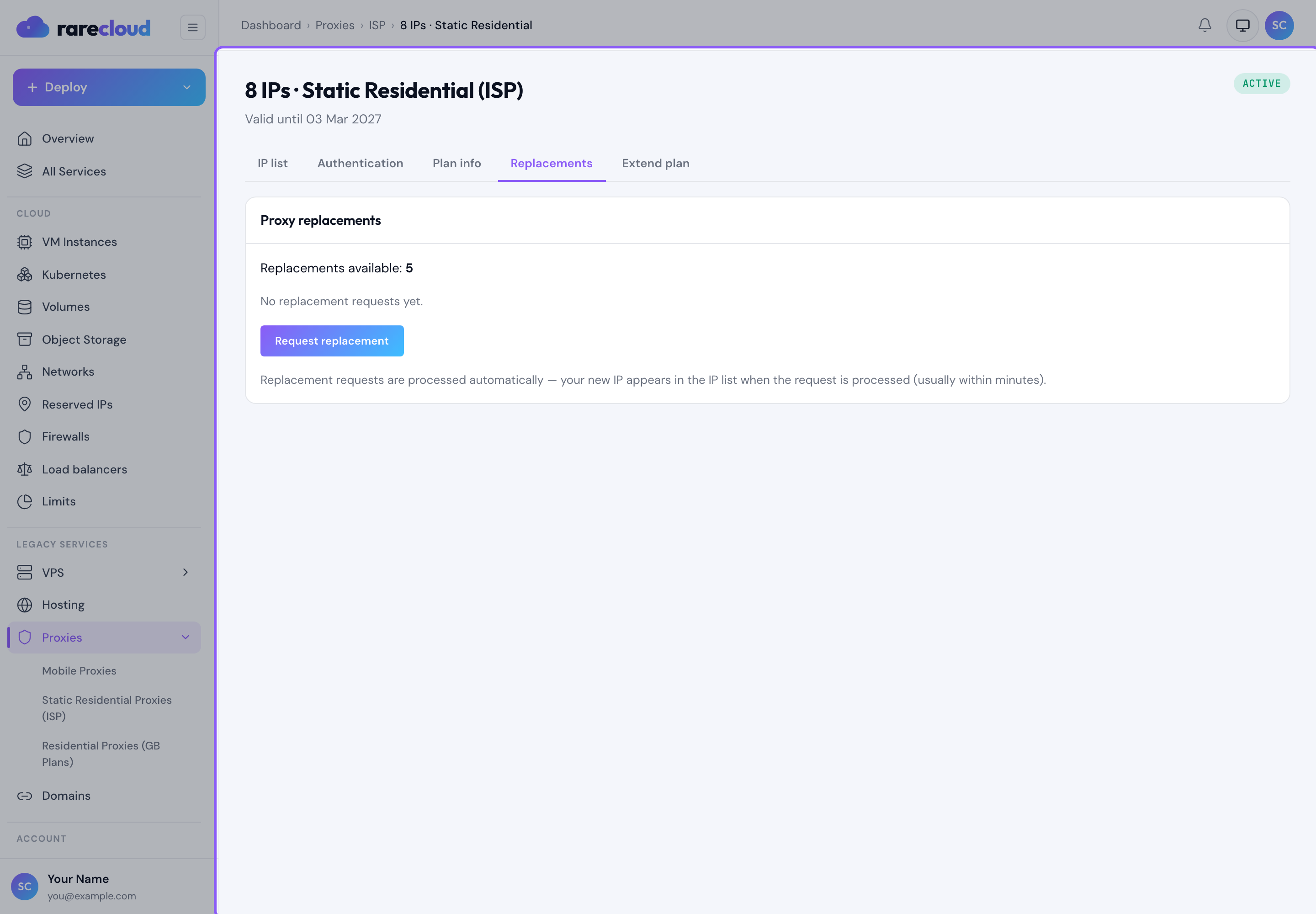
A replaced address is released immediately and cannot be recovered, so replace one only when you are finished with it. Replacements are added to your plan when you order; the tab shows how many you have left.
Renewing before it expires
Extend plan renews the service for another term at the current price, and your IPs stay exactly the same.
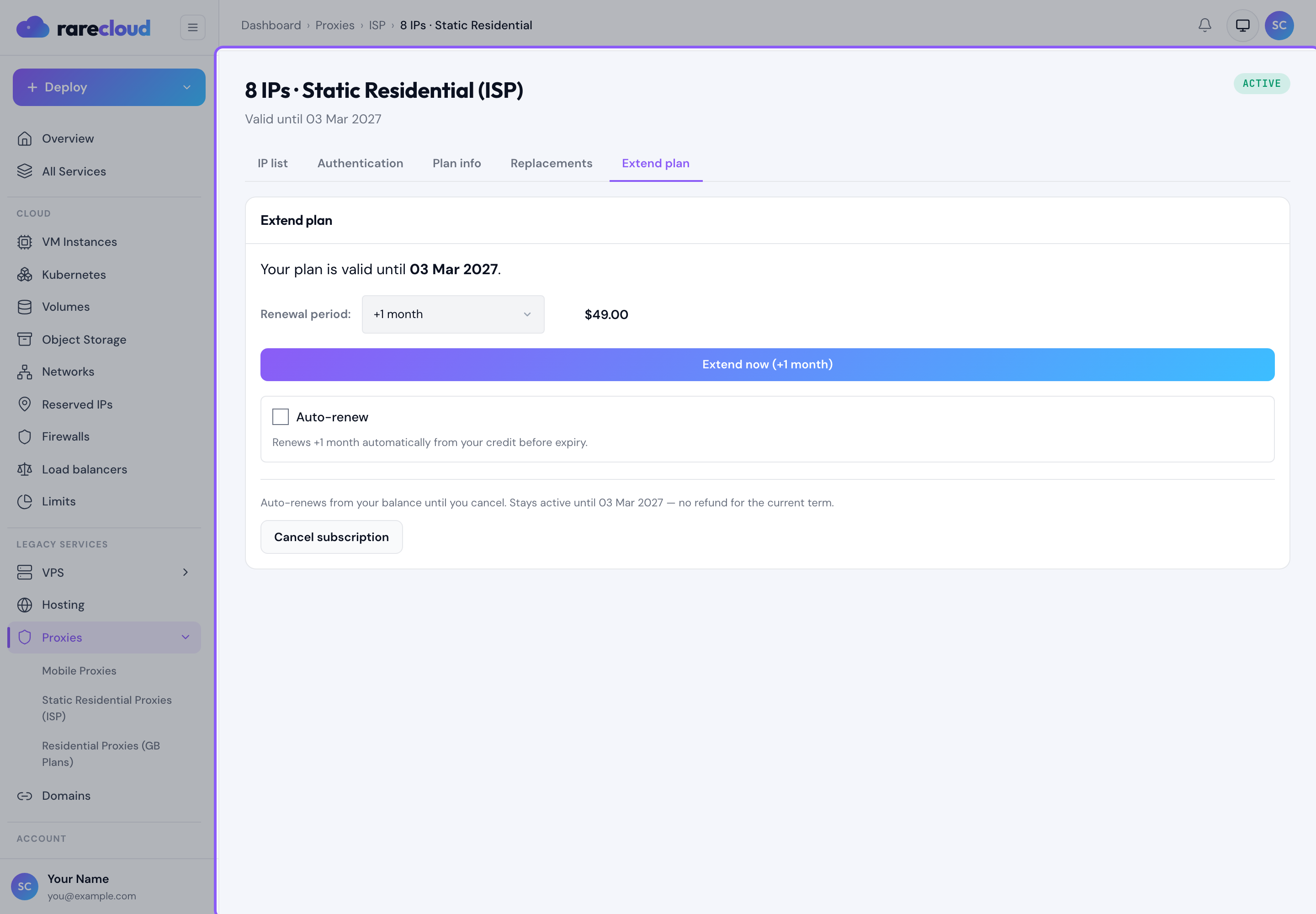
Two things worth knowing about timing:
- A static residential IP is released the moment the service expires and cannot be reserved back, not even the same day. Renewing late means a different address.
- You will get an email 7, 3 and 1 days before a renewal your balance cannot cover, showing exactly how much to top up. You can also set your own low-balance alert under Billing.
Quick troubleshooting
The proxy refuses to connect. Nine times out of ten the protocol is wrong. Check the Format column and make sure your tool is set to the same thing. A SOCKS5 endpoint will not answer an HTTP proxy request, and the other way round.
It worked yesterday and not today. Open the plan and look at the expiry date, then run Check now. If the check is clean, test from a different network to rule out a local firewall.
I need a different city. Use Replacements and pick the location you want, or order an additional IP in that location.
Still stuck? Reply to any of our emails or open a ticket from the client area, and tell us which IP and what exact error you see. We test the same proxy from our own infrastructure and tell you what we measure.